How to Fix Google Merchant Center Misrepresentation and Account Suspension
If Google Merchant Center shows “Misrepresentation — Prevents all products from showing,” your products may have limited or no visibility across Google. The issue can involve your website, business information, product data, policies, shipping, returns, checkout, payment information, or Merchant Center setup.
This guide explains how to fix Google Merchant Center Misrepresentation, why products stop showing on Google, what to check before requesting a review, and how to prepare your website and Merchant Center account for a successful review.
Google Merchant Center Says “Misrepresentation — Prevents All Products From Showing”
If you are seeing:
Misrepresentation
Prevents all products from showing
in Google Merchant Center, this does not necessarily mean that one specific product is the problem.
The issue may affect your entire Merchant Center account, website, or product catalog.
You may also see messages such as:
“Google found some issues that impact your product visibility.”
or:
“Fix your setup and policy issues.”
When this happens, do not focus only on individual product disapprovals. Review your entire ecommerce store and Merchant Center setup.
Check the following areas:
- Business information
- Contact information
- Shipping information
- Return and refund policies
- Product prices
- Product availability
- Product descriptions
- Product images
- Checkout
- Payment information
- Website policies
- Product feeds
- Merchant Center settings
- Target countries
- Currency
- Product identifiers
- Restricted products and claims
The goal is to make sure your business, website, products, and shopping experience are accurately and transparently represented.
What Is Google Merchant Center Misrepresentation?
Google Merchant Center Misrepresentation is a policy issue that can occur when Google identifies information about a business, website, product, offer, or shopping experience that is unclear, inaccurate, incomplete, or potentially misleading.
Misrepresentation is not always caused by a single product.
Google may evaluate the overall relationship between your:
Business → Website → Product Pages → Product Feed → Merchant Center → Shipping → Checkout
This means a store can have technically correct product titles and images and still receive a Misrepresentation warning because another part of the customer experience is incomplete or inconsistent.
Why Are My Products Not Showing on Google?
If your products suddenly stop appearing on Google Shopping or other Google surfaces, first determine whether you have a product-level issue or an account-level issue.
Product-Level Disapproval
A product-level issue normally affects specific products.
Examples include:
- Price mismatch
- Availability mismatch
- Missing product attributes
- Incorrect images
- Product data errors
- Shipping issues
- Restricted products
- Incorrect product identifiers
Account-Level or Store-Level Issue
An account-level issue can affect a large part of your catalog or prevent products from showing altogether.
If Google Merchant Center specifically displays:
Misrepresentation — Prevents all products from showing
you should treat the issue as an overall website, business, policy, or Merchant Center setup problem until you identify the actual cause.
Google Merchant Center Setup and Policy Issues Affecting All Products
When Google says:
“Setup and policy issues affecting all products”
do not automatically assume that every product has an individual policy violation.
The problem may exist somewhere in your overall ecommerce setup.
For example, your product feed may contain correct information while your website has:
- Incomplete business information
- Missing contact details
- Unclear return or refund information
- Inconsistent shipping information
- Price differences between the feed and website
- Incorrect stock availability
- Broken product pages
- A checkout that does not work correctly
- Conflicting currency information
- Misleading product claims
- Outdated feed information
- Incorrect Merchant Center settings
This is why fixing only the product feed may not resolve a Google Merchant Center Misrepresentation issue.
Common Causes of Google Merchant Center Misrepresentation
1. Incomplete Business Information
Your website should make it clear who operates the store and how customers can contact the business.
Review your:
- Business name
- Contact information
- Email address
- Phone number
- Business address where applicable
- About Us page
- Customer support information
Make sure important business information is consistent across your website and Merchant Center.
2. Missing or Unclear Contact Information
Customers should have a clear way to contact your business.
Where appropriate, provide:
- Customer service email
- Phone number
- Contact page
- Business address
- WhatsApp or another customer support channel
Do not rely only on a contact form if customers have no other practical way to reach the business.
3. Missing or Unclear Return and Refund Policy
Your return and refund policy should clearly explain how customers can return products and receive refunds.
Review:
- Return period
- Return process
- Refund process
- Return shipping responsibility
- Refund conditions
- Exceptions
- Non-returnable products where applicable
Your policy should reflect your actual business practices rather than being copied from another store.
4. Missing or Inconsistent Shipping Information
Customers should be able to understand how their order will be delivered.
Review:
- Shipping countries
- Shipping methods
- Delivery estimates
- Shipping costs
- Free shipping conditions
- Local delivery
- Customs or additional charges where applicable
Your website shipping information should be consistent with your Merchant Center shipping configuration.
5. Price and Currency Mismatch
One common source of Merchant Center problems is inconsistency between the product information submitted to Google and the information displayed on your website.
Check:
- Product price
- Sale price
- Currency
- Taxes
- Shipping costs
- Product variants
- Final checkout price
The price shown to customers should accurately correspond to the product information submitted to Google.
6. Product Availability Mismatch
Your Merchant Center feed should accurately reflect the actual availability of products on your website.
Check for:
- Products marked in stock when they are unavailable
- Incorrect inventory synchronization
- Broken product URLs
- Products that cannot actually be purchased
- Incorrect variant availability
- Outdated product feeds
7. Misleading Product Information
Review your product:
- Titles
- Descriptions
- Images
- Claims
- Specifications
- Brand information
- Product identifiers
Do not make claims that the product cannot reasonably support.
Product information submitted to Google should accurately represent what customers will receive.
How to Fix Google Merchant Center Misrepresentation
Fixing Misrepresentation should be treated as a complete store and Merchant Center audit, rather than simply submitting another review request.
Step 1: Review Your Entire Website
Review the complete customer journey:
Homepage → Product Page → Cart → Checkout → Payment → Order Information
Also check:
- About Us
- Contact
- Shipping
- Returns & Refunds
- Privacy Policy
- Terms & Conditions
Make sure important pages are accessible, functional, and consistent with your actual business.
Step 2: Check Your Business Identity
Compare your business information across:
- Website
- Merchant Center
- Google Business Profile where applicable
- Checkout
- Contact information
- Other important business profiles
Avoid conflicting business names, addresses, contact details, or business identities.
Step 3: Review Every Product Page
Do not check only the products currently showing errors.
Review the catalog for:
- Accurate titles
- Accurate descriptions
- Correct prices
- Correct availability
- Clear images
- Correct variants
- Product identifiers
- Working URLs
- Accurate product information
The product feed and landing page should describe the same product and offer.
Step 4: Review Your Website Policies
Make sure your store has clear and accessible:
- Shipping Policy
- Return & Refund Policy
- Privacy Policy
- Terms & Conditions
The policies should be easy for customers to find and should accurately describe how your business operates.
Step 5: Test the Checkout
Complete a test purchase whenever possible.
Check that:
- Products can actually be purchased
- Prices remain consistent
- Shipping information is clear
- Payment methods work
- The checkout works in your target country
- The final price is understandable
- Customers know who they are purchasing from
A working product page is not enough if the checkout creates confusion or contradicts information shown elsewhere.
Google Merchant Center Review Checklist
Before requesting a review, use this checklist.
Website
- Business information is clear
- Contact information is available
- About Us page is available
- Shipping information is clear
- Return and refund policy is clear
- Privacy policy is available
- Terms and conditions are available
- Product pages work correctly
- Checkout works correctly
- Prices are consistent
- Product availability is accurate
- Payment information is clear
Merchant Center
- Business information is accurate
- Website URL is correct
- Product feed is accurate
- Product prices match the website
- Product availability matches the website
- Shipping settings are accurate
- Target countries are correct
- Currency settings are correct
- Product landing pages work
- Other account warnings have been reviewed
Google Merchant Center Misrepresentation on Shopify
If your store uses Shopify, additional checks may be necessary.
Review:
- Google & YouTube sales channel
- Shopify Markets
- Currency settings
- Product availability
- Product variants
- Shipping settings
- Tax settings
- Product feed synchronization
- Multiple feed applications
- Product URLs
- Checkout configuration
Make sure only accurate and current product information is being submitted to Google.
For a detailed Shopify-specific guide, see:
Google Merchant Center Misrepresentation on Shopify
هنا تعمل Internal Link على مقال Shopify الموجود عندك.
Google Merchant Center Misrepresentation on WooCommerce
For WooCommerce stores, review:
- WooCommerce product data
- Product prices
- Stock status
- Product variations
- Shipping zones
- Tax settings
- Google Merchant product feed
- Google for WooCommerce configuration
- Product schema
- Product URLs
- Checkout
Pay particular attention to conflicts between WooCommerce, your feed plugin, and Merchant Center.
For a detailed WooCommerce guide, see:
Google Merchant Center Misrepresentation on WooCommerce
هنا تعمل Internal Link على المقال الموجود عندك.
Google Merchant Center Misrepresentation on Salla
Salla merchants should review:
- Store information
- Product data
- Product availability
- Prices
- Shipping
- Returns
- Policies
- Google Merchant integration
- Product feed
- Currency
- Target countries
For a detailed Salla-specific guide, see:
Google Merchant Center Misrepresentation on Salla
Internal Link للمقال القديم.
Google Merchant Center Misrepresentation on TJAR
If your store is built on TJAR, review your:
- Business information
- Product data
- Shipping
- Returns
- Pricing
- Currency
- Product feed
- Store policies
- Google Merchant Center configuration
For the detailed TJAR guide, see:
Google Merchant Center Misrepresentation on TJAR
Internal Link للمقال القديم.
What If Google Merchant Center Review Is Rejected?
If Google rejects your review, do not simply submit the same request repeatedly without making additional changes.
Instead:
- Review the Misrepresentation warning again.
- Audit the entire website.
- Check business information.
- Check contact information.
- Review shipping and returns.
- Check product prices and availability.
- Review product descriptions and claims.
- Test the checkout.
- Review Merchant Center settings.
- Fix any additional policy or setup issues.
- Request another review when the account is ready.
The objective is to fix the underlying problem, not simply to submit another appeal.
Should I Create a New Google Merchant Center Account?
Creating a new Merchant Center account is not a substitute for fixing the underlying policy problem.
If the same website, business information, products, or setup continue to violate Google’s policies, creating another account may not solve the problem.
Fix the website and Merchant Center configuration first.
Frequently Asked Questions
What does “Misrepresentation — Prevents all products from showing” mean?
It means Google has identified a Misrepresentation issue that can affect the visibility of your product catalog. The problem may involve your website, business information, product data, policies, shipping, returns, checkout, or Merchant Center setup.
How do I fix Google Merchant Center Misrepresentation?
Start with a complete audit of your website and Merchant Center account. Check business information, contact details, shipping, returns, refunds, product data, pricing, availability, checkout, policies, and Merchant Center settings before requesting a review.
Why are all my products not showing on Google Merchant Center?
If all products are affected, check for an account-level or store-level issue such as Misrepresentation, incomplete business information, website transparency problems, product data inconsistencies, or other Merchant Center policy violations.
Can changing product descriptions fix Misrepresentation?
Not necessarily. Misrepresentation can involve the entire customer experience. Changing product descriptions alone may not resolve problems related to business information, shipping, returns, checkout, pricing, or Merchant Center settings.
What does “Google found some issues that impact your product visibility” mean?
This message indicates that Google has identified issues affecting the visibility of your products. Review both your Merchant Center setup and your website before requesting a review.
What does “Setup and policy issues affecting all products” mean?
It can indicate that the problem is broader than individual product disapprovals. Review your website, policies, business information, product data, shipping, checkout, and Merchant Center configuration.
How long does a Google Merchant Center review take?
Review times can vary depending on the account and issue. Google indicates that many reviews can take several business days, so avoid repeatedly submitting requests without making meaningful corrections.
Should I create a new Merchant Center account after suspension?
No. Creating another account does not fix the underlying policy problem. Correct the website and account issues first.
Need Help Fixing Google Merchant Center Misrepresentation?
If your Google Merchant Center account shows:
Misrepresentation
Prevents all products from showing
or:
Google found some issues that impact your product visibility
the problem should be investigated across your entire ecommerce setup.
IT LISTA helps ecommerce businesses identify and fix issues affecting Google Merchant Center, Google Shopping, product feeds, website policies, product data, tracking, and ecommerce visibility.
Whether your store runs on Shopify, WooCommerce, Salla, TJAR, or a custom ecommerce platform, the first step is identifying the actual cause of the restriction and correcting the affected areas before requesting a review.
Need help fixing your Google Merchant Center account? Contact IT LISTA for a complete audit and troubleshooting.
🔗 Related IT LISTA Guides
Google Merchant Center Misrepresentation on TJAR
Google Merchant Center Misrepresentation / Misleading Information
Google Merchant Center Account Suspension
Google Shopping Product Disapprovals
Google Merchant Center Shipping Issues
Google Merchant Center Return & Refund Policy Issues
Google Merchant Center Product Feed Issues
Google Merchant Center Misrepresentation on Shopify
Google Merchant Center Misrepresentation on WooCommerce
Google Merchant Center Misrepresentation on Salla
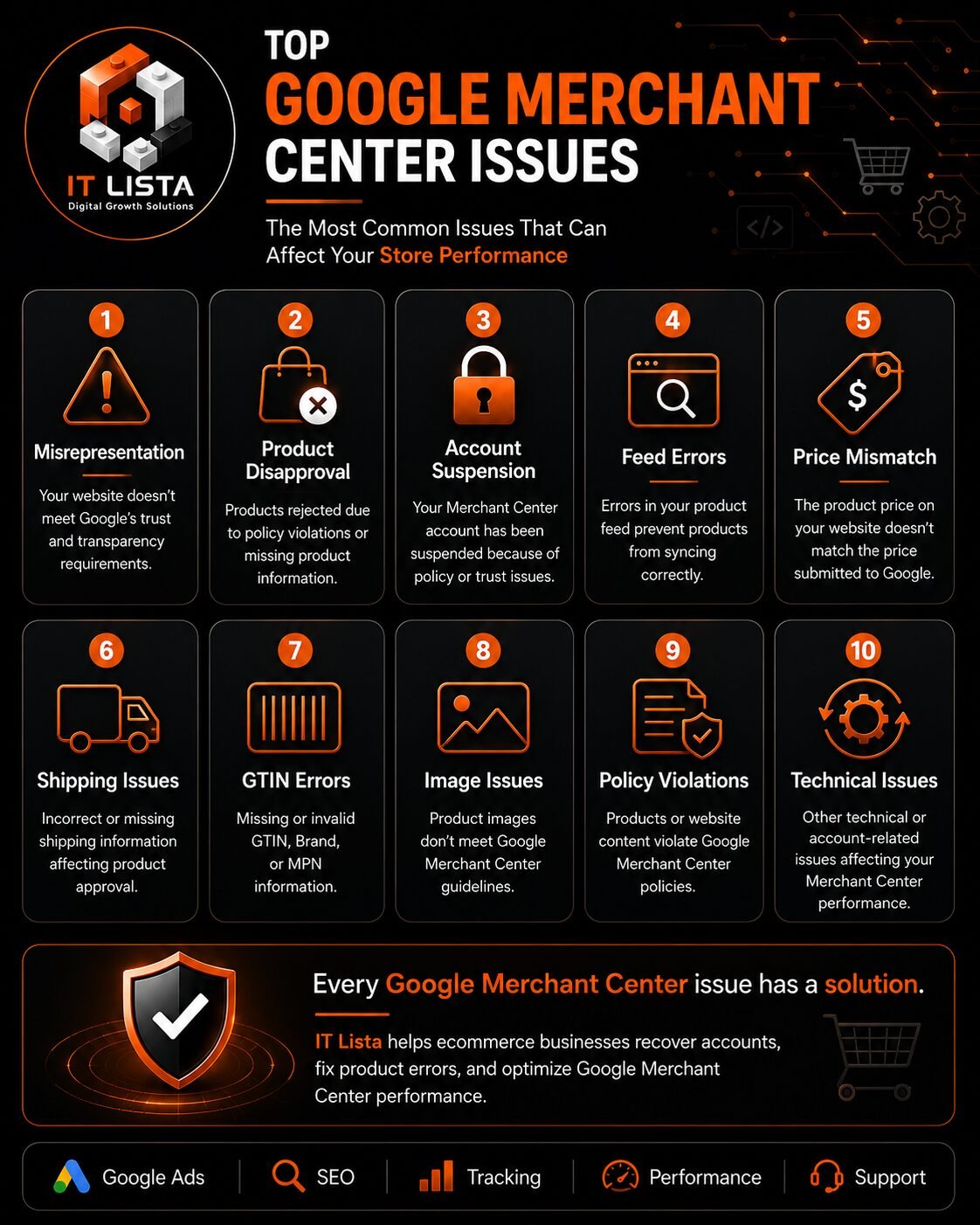
Google Merchant Center enables online stores to display products across Google Shopping, Search, Images, YouTube and other Google surfaces. However, a policy warning, product-data error or account suspension can prevent products from appearing and stop active Shopping campaigns.
One of the most serious Merchant Center violations is Misrepresentation. It may affect individual products or suspend the entire account when Google identifies unclear, inaccurate, incomplete or potentially misleading information about the business, website, products or offers.
Fixing the issue requires more than changing a product description or requesting another review. You need to investigate the website, business information, product feed, policies, checkout experience and Merchant Center settings as one connected system.
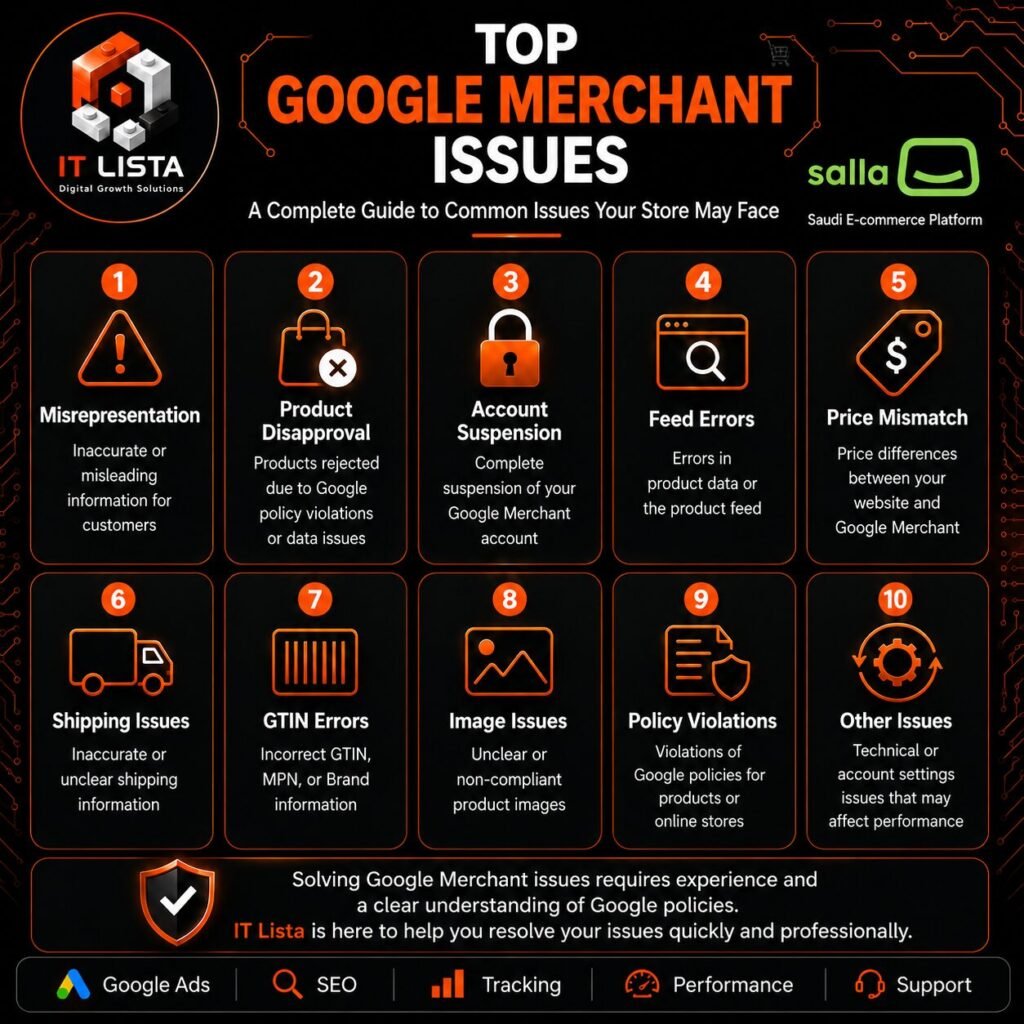
In this guide, IT LISTA explains how to fix Google Merchant Center Misrepresentation, account suspension, product disapprovals, price mismatches, shipping problems and other common Merchant Center issues.
For professional assistance, explore the IT LISTA Google Merchant Center troubleshooting service.
Quick Answer: How Do You Fix Google Merchant Center Misrepresentation?
To fix Google Merchant Center Misrepresentation:
- Read the exact policy notification inside Merchant Center.
- Determine whether it affects products or the entire account.
- Verify the business name, address and contact information.
- Add complete shipping, return, refund, privacy and terms pages.
- Match product prices, currencies and availability across the website and feed.
- Correct missing or inaccurate product attributes.
- Remove misleading offers, claims and hidden charges.
- Test the complete checkout process.
- Review the domain, website security and Merchant Center settings.
- Request a review only after correcting every related issue.
Google evaluates the complete customer experience. Fixing one product or adding one policy page may not resolve an account-level suspension if other inconsistencies remain.
What Is Google Merchant Center Misrepresentation?
Misrepresentation is a Google Shopping policy violation involving inaccurate, unclear, incomplete or deceptive information about a store, product or business.
Google expects customers to understand:
- Who operates the store.
- How to contact the business.
- What product they are purchasing.
- The complete product price.
- Whether the product is available.
- How shipping works.
- When delivery is expected.
- How returns and refunds are handled.
- Which payment methods are accepted.
- Whether an offer contains recurring charges.
- What happens during checkout.
If this information is missing or contradictory, Google may restrict the products or suspend the Merchant Center account.
Possible consequences include:
- Product disapprovals.
- Loss of free listings.
- Shopping advertisements stopping.
- Account warnings.
- Merchant Center suspension.
- Google Ads restrictions.
- Repeated review failures.
You can review the requirements in Google’s official Misrepresentation policy.
Product Disapproval Versus Account Suspension
Before making changes, identify whether you have a product-level problem or an account-level violation.
Product-level disapproval
A product disapproval usually affects specific items because of issues such as:
- Missing GTIN.
- Invalid images.
- Price mismatch.
- Availability mismatch.
- Missing shipping information.
- Incorrect product category.
- Unsupported promotional text.
- Restricted products.
- Broken landing pages.
Merchant Center usually identifies the affected products and attributes.
Account-level suspension
An account-level suspension can affect every product and Shopping campaign connected to the Merchant Center account.
It may be associated with:
- Misrepresentation.
- Circumventing systems.
- Unacceptable business practices.
- Missing business information.
- Website or checkout problems.
- Repeated policy violations.
- Unsupported products.
- Inconsistent account information.
Correcting individual product attributes will not restore the account if Google’s concerns relate to the business or website as a whole.
Common Causes of Google Merchant Center Misrepresentation
Missing business information
The store should provide accurate and accessible business details, including:
- Business or trading name.
- Customer-service email.
- Working phone number.
- Business address where applicable.
- Contact page.
- Support hours when relevant.
- About Us page.
The business information should remain consistent across the website, checkout, policy pages, Merchant Center and linked profiles.
Missing contact information
Google and potential customers must be able to contact the store.
Avoid relying exclusively on:
- A contact form with no email address.
- Social media messages.
- WhatsApp without additional business information.
- A phone number that does not work.
- Placeholder contact details.
Your Contact Us page should be easy to find from the footer.
Incomplete shipping policy
A clear shipping policy should explain:
- Countries or regions served.
- Order-processing time.
- Estimated delivery time.
- Shipping charges.
- Free-shipping conditions.
- Delivery restrictions.
- Order-tracking options.
- Possible delays.
- Carrier information when relevant.
The information on the website should correspond with the shipping settings submitted to Merchant Center.
Missing return and refund policy
The return policy should clearly state:
- Whether returns are accepted.
- The allowed return period.
- Product-condition requirements.
- Non-returnable items.
- How to request a return.
- Who pays the return shipping cost.
- How refunds are issued.
- Expected refund times.
- Cancellation and exchange conditions.
If returns are not accepted for certain products, disclose that clearly before checkout.
Price mismatch
A price mismatch occurs when the price shown on the product landing page differs from the price submitted to Google.
Common causes include:
- Expired sale prices.
- Delayed feed updates.
- Automatic currency conversion.
- Different prices for product variants.
- VAT being added later.
- Mandatory charges appearing at checkout.
- Targeting the wrong country or currency.
- Multiple feeds submitting different prices.
- Cached product information.
The customer should see the same price submitted to Google without needing to log in or select an unrelated option.
Availability mismatch
Google may disapprove a product if its submitted availability does not match the website.
Examples include:
- The feed says
in_stock, but the product cannot be purchased. - An unavailable size or color is submitted as available.
- A discontinued product remains active.
- Preorder products are incorrectly marked as in stock.
- Inventory updates are delayed.
- Customers must contact support before purchasing.
Review availability for every important product and variant.
Misleading product titles and descriptions
Product information should accurately describe what customers receive.
Avoid:
- Fake discounts.
- Unsupported guarantees.
- Unverifiable “best” or “number one” claims.
- Excessive keyword repetition.
- Promotional text inside product titles.
- Descriptions copied from unrelated stores.
- Hidden subscription conditions.
- Mentioning accessories that are not included.
- False urgency or scarcity.
- Incorrect product specifications.
Titles and descriptions should be informative, natural and consistent with the landing page.
Incorrect product images
The primary image should represent the actual product being sold.
Avoid:
- Placeholder images.
- Promotional overlays.
- Images showing products not included in the offer.
- Excessive watermarks.
- Low-quality images.
- Images belonging to another variant.
- Borders designed to imitate Google elements.
- Unsupported before-and-after claims.
Broken or misleading checkout
Google may test whether customers can complete a purchase.
Your checkout should:
- Work on mobile and desktop.
- Display the final price.
- Show shipping costs clearly.
- Support the targeted locations.
- Provide working payment options.
- Use HTTPS.
- Avoid unexpected redirects.
- Avoid test-mode messages.
- Explain mandatory account creation.
- Avoid adding undisclosed charges.
Test the complete purchase journey from the product page to the final checkout step.
Required Pages for Merchant Center Compliance
A trustworthy online store should normally contain:
- About Us.
- Contact Us.
- Shipping Policy.
- Return and Refund Policy.
- Privacy Policy.
- Terms and Conditions.
- Payment Methods.
- Frequently Asked Questions when useful.
- Order tracking or order-status information when available.
Place the essential links in the website footer.
Do not publish copied templates without adapting them. Every policy should reflect the real business, target countries, delivery times, payment methods and return procedures.
How to Fix Product Feed Problems
A product feed transfers product information from the store to Google Merchant Center.
Products may be submitted through:
- An e-commerce platform integration.
- An application or plugin.
- Content API.
- XML feed.
- Scheduled file.
- Google Sheets.
- Manual products.
- A third-party feed-management system.
Before changing anything, identify the active source responsible for your products.
Review duplicate data sources
Multiple integrations can create:
- Duplicate products.
- Conflicting prices.
- Old inventory information.
- Different product IDs.
- Incorrect target countries.
- Discontinued products returning.
- Conflicting languages and currencies.
Review every data source inside Merchant Center and retain only the required configuration.
Review essential product attributes
Check the following fields:
idtitledescriptionlinkimage_linkavailabilitypricesale_pricebrandgtinmpnconditiongoogle_product_categoryshipping- Variant attributes such as size and color
Google’s product data specification explains the requirements for these attributes.
Do not invent product identifiers
Do not:
- Create fake GTINs.
- Use the same barcode for unrelated items.
- Submit another manufacturer’s barcode.
- Replace an unknown GTIN with an internal SKU.
- Add an incorrect brand.
If a custom product genuinely has no GTIN, configure its identifiers according to Google’s requirements.
Review product variants
For products with multiple sizes, colors or specifications:
- Use a stable ID for every submitted variant.
- Open the correct variant from the landing-page URL.
- Match the price to the selected variant.
- Match the availability to the selected variant.
- Use the correct image.
- Group related variants correctly.
Shipping and Return Settings in Merchant Center
Website policies alone may not be enough. Review the corresponding Merchant Center settings.
Verify:
- Target countries.
- Shipping services.
- Delivery times.
- Order-processing times.
- Shipping rates.
- Free-shipping thresholds.
- Return periods.
- Return costs.
- Return methods.
- Policy URLs.
Do not enter attractive shipping information in Merchant Center if it does not match the actual checkout experience.
Google Merchant Center Problems by Platform
Shopify
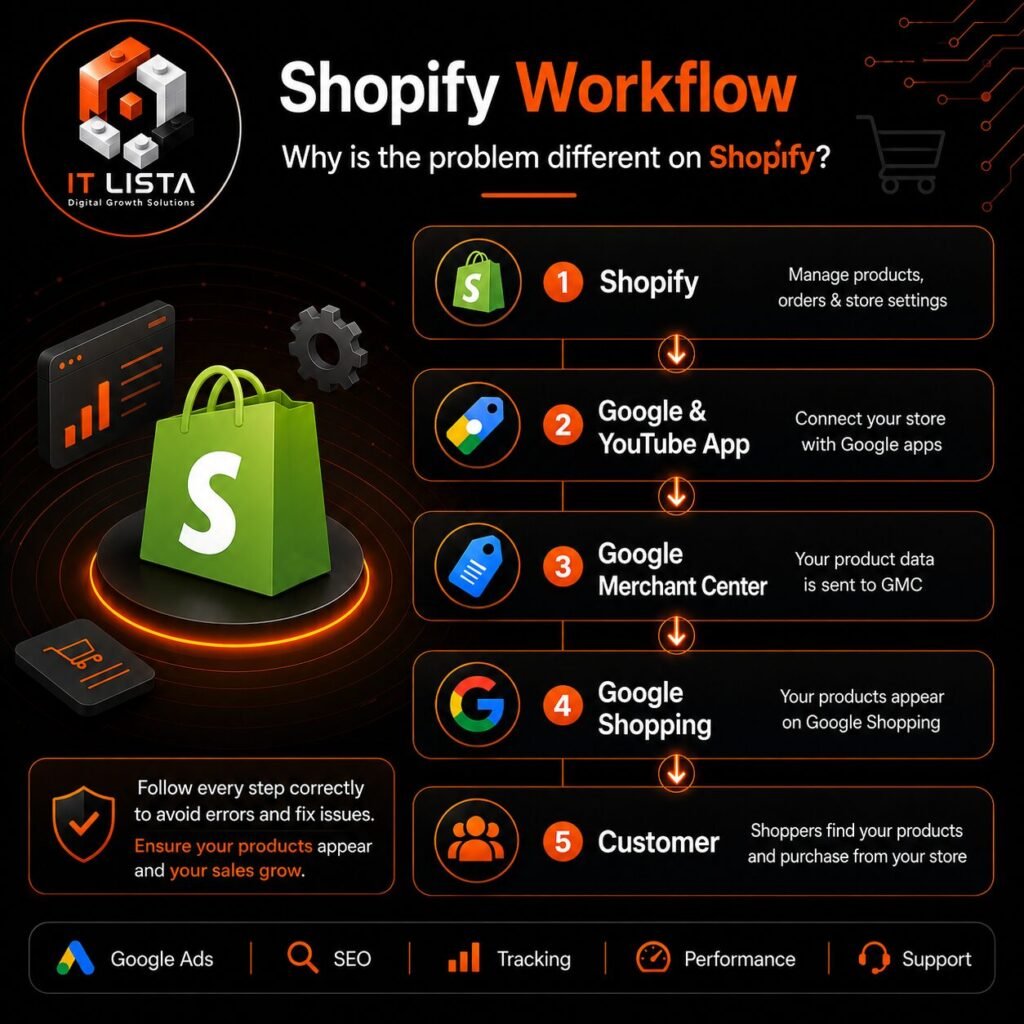
Shopify stores may experience problems involving:
- Google & YouTube application settings.
- Shopify Markets.
- Automatic currency conversion.
- Product variants.
- Delayed synchronization.
- Multiple feed applications.
- Sale-price updates.
- Domain or market conflicts.
WordPress and WooCommerce
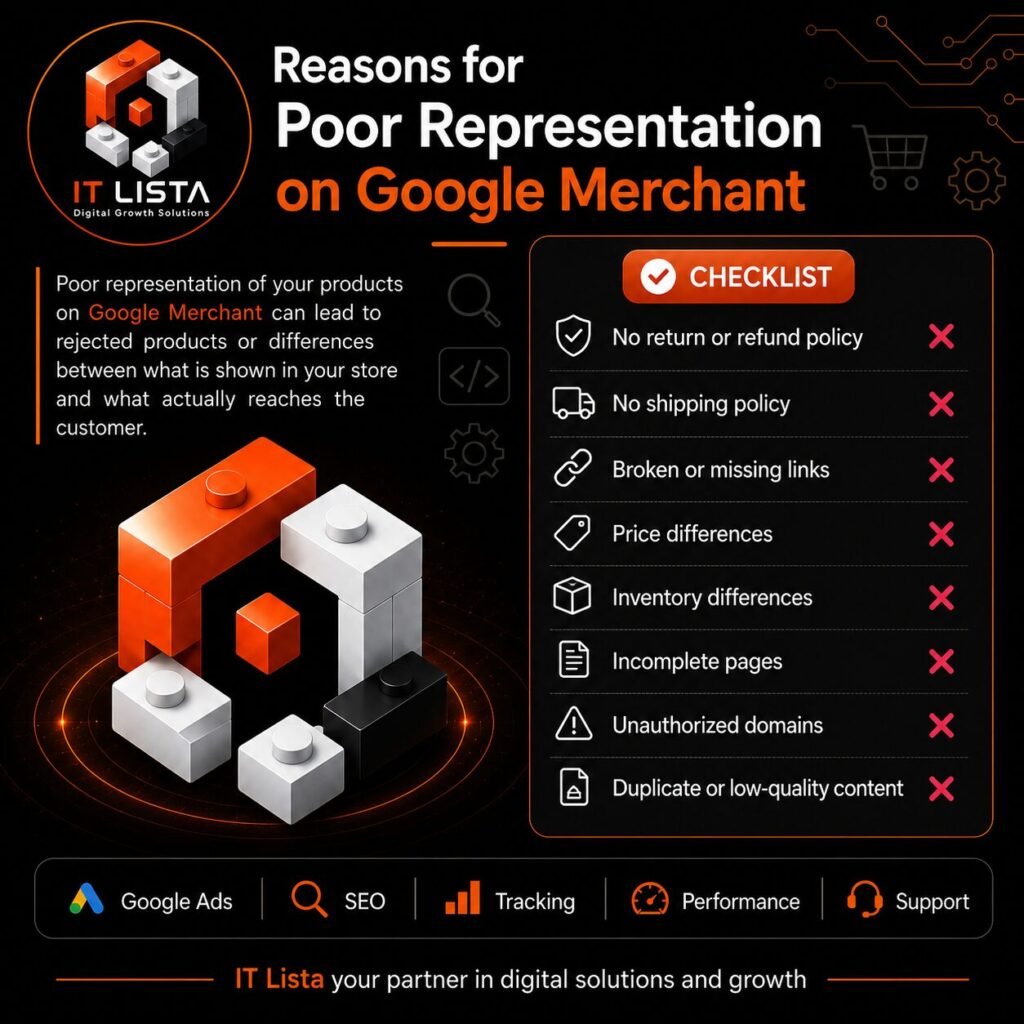
WooCommerce issues may originate from:
- Outdated feed plugins.
- Caching.
- Variable products.
- Incorrect schema.
- Currency plugins.
- Duplicate feeds.
- Plugin conflicts.
- Missing product identifiers.
- Incorrect tax settings.
Salla
Salla stores should review:
- Product-feed synchronization.
- Store policies.
- Shipping settings.
- Target country and currency.
- Product variations.
- Business information.
- Product identifiers.
- Checkout availability.
TJAR

TJAR stores may need to review:
- The method used to submit products.
- Product-feed updates.
- Business and policy pages.
- Prices and currencies.
- Product inventory.
- Variant information.
- Shipping settings.
- Checkout functionality.
Zid
Zid stores should check:
- Integration settings.
- Product updates.
- Target-market configuration.
- Product identifiers.
- Shipping information.
- Policy pages.
- Currency and inventory synchronization.
Custom-Built Stores
Custom websites require additional technical checks, including:
- Structured product data.
- Server-side rendering.
- Dynamic prices.
- JavaScript accessibility.
- Canonical URLs.
- Product-feed generation.
- Variant URLs.
- Sitemap configuration.
- Robots.txt restrictions.
- Googlebot access.
- Checkout functionality.
The platform name alone does not determine approval. Google reviews each store individually.
Subscriptions, Services and Digital Products
Stores selling subscriptions, services or digital products need additional transparency.
Clearly disclose:
- Whether payment is one-time or recurring.
- Billing frequency.
- Trial conditions.
- Automatic renewal.
- Cancellation procedures.
- Digital delivery method.
- What the customer receives.
- Eligibility restrictions.
- Refund conditions.
Never display a monthly subscription price as though it were the complete one-time cost.
Some offers may not be eligible for Google Shopping. Confirm product eligibility before submitting them repeatedly.
Restricted and Prohibited Products
Certain products are prohibited or restricted by Google Shopping policies.
Depending on the product and target country, additional rules may apply to:
- Healthcare products.
- Medical devices.
- Supplements.
- Adult products.
- Weapons.
- Tobacco and nicotine.
- Alcohol.
- Counterfeit goods.
- Dangerous products.
- Products making unsupported health claims.
- Products requiring regulatory approval.
Removing one restricted product may not resolve the account if similar products or unsupported claims remain elsewhere on the website.
How to Fix a Suspended Google Merchant Center Account
Step 1: Read the exact notification
Review the policy section and record:
- Policy name.
- Whether it affects products or the account.
- Affected country.
- Affected data source.
- Examples supplied by Google.
- Date of the latest review.
Step 2: Audit the public website
Open the website in an incognito browser.
Check it on:
- Mobile.
- Desktop.
- Different product pages.
- Cart.
- Checkout.
- Policy pages.
- Contact page.
Google evaluates the public experience, not the administration dashboard.
Step 3: Correct trust and business information
Make the business details consistent across:
- Website header and footer.
- Contact page.
- About page.
- Policies.
- Checkout.
- Merchant Center.
- Payment information.
- Linked business profiles.
Step 4: Correct product data
Review:
- Product titles.
- Descriptions.
- Prices.
- Sale prices.
- Currencies.
- Availability.
- Variants.
- Images.
- Product identifiers.
- Categories.
- Shipping data.
- Landing-page URLs.
Step 5: Correct Merchant Center settings
Review:
- Business information.
- Verified domain.
- Data sources.
- Target countries.
- Languages.
- Shipping.
- Returns.
- Tax settings where applicable.
- Linked Google Ads account.
Step 6: Allow the data to update
After correcting the store, verify that Merchant Center has received the new information.
Make sure an old feed or integration is not continuing to submit outdated data.
Step 7: Test the complete purchase process
Test the store like a real customer, including:
- Opening the product.
- Selecting a variant.
- Adding it to the cart.
- Entering checkout.
- Adding a supported address.
- Viewing delivery costs.
- Selecting a payment method.
- Reaching the final confirmation step.
Step 8: Request a review
Request a review only when all relevant corrections are complete.
According to Google, some reviews may take up to seven business days. The final reinstatement decision remains with Google.
Follow the official instructions for requesting a Merchant Center review.
Actions to Avoid After a Suspension
Do not:
- Create another account to avoid enforcement.
- Submit repeated reviews without corrections.
- Invent business details.
- Hide mandatory costs.
- Buy fake customer reviews.
- Delete products without finding the cause.
- Change domains to escape the suspension.
- Remove policy pages after approval.
- Submit fake GTINs.
- Copy another store’s policies without editing them.
- Claim guaranteed approval.
- Use multiple accounts for the same unresolved store.
These actions can create additional violations and make recovery more difficult.
Merchant Center Review Checklist
Before requesting a review, confirm:
- The domain is verified and claimed.
- The website uses HTTPS.
- Business information is accurate.
- Contact information is visible.
- The support email and phone number work.
- About Us and Contact Us pages are complete.
- Shipping information is clear.
- Return and refund conditions are clear.
- Privacy and terms pages are accessible.
- Product prices match the feed.
- Currency matches the target country.
- Availability is accurate.
- Product variants open correctly.
- Checkout works on mobile and desktop.
- No mandatory charges are hidden.
- Images represent the products.
- Product identifiers are genuine.
- Restricted products have been reviewed.
- Broken links have been removed.
- Placeholder content has been replaced.
- Duplicate data sources have been checked.
- Merchant Center contains updated information.
- Every policy warning has been addressed.
Why a Review May Be Rejected Again
A review may fail when:
- Only the reported example was corrected.
- Other products have the same issue.
- Policy pages remain incomplete.
- The feed still contains outdated information.
- Checkout does not work in the target country.
- Business details remain inconsistent.
- Mandatory charges are hidden.
- Restricted products remain active.
- Another integration continues to submit incorrect data.
- The review was requested before Google processed the changes.
A failed review does not always identify every problem. A complete audit is therefore more effective than repeatedly modifying isolated fields.
How IT LISTA Solves Google Merchant Center Problems
IT LISTA investigates the website, products, feeds and Merchant Center configuration together.
Our service may include:
- Merchant Center account audit.
- Misrepresentation investigation.
- Account-suspension analysis.
- Product-disapproval troubleshooting.
- Business-information review.
- Shipping and return-policy review.
- Product-feed diagnostics.
- Price and currency mismatch correction.
- Inventory and availability review.
- Product attribute optimization.
- Duplicate-feed investigation.
- Checkout testing.
- Platform-specific technical fixes.
- Review preparation.
- Prevention recommendations.
- GA4 and GTM conversion tracking when required.
We work with:
- Shopify.
- WordPress.
- WooCommerce.
- Salla.
- TJAR.
- Zid.
- Magento.
- Custom-built stores.
- Multilingual and multicurrency websites.
IT LISTA does not guarantee reinstatement because the final decision belongs to Google. We identify the likely root causes, implement or recommend the required corrections and prepare the account for a properly supported review.
Learn more about our Google Merchant Center troubleshooting service.
Frequently Asked Questions
How do I fix Google Merchant Center Misrepresentation?
Audit the business information, website policies, product data, prices, inventory, feed, checkout and Merchant Center settings. Correct every inconsistency before requesting another review.
Why was my Google Merchant Center account suspended?
Common causes include Misrepresentation, inaccurate business information, missing policies, product-data mismatches, checkout problems, restricted products and repeated policy violations.
Can Google Merchant Center suspension be removed?
You can request a review after correcting the underlying violations. Reinstatement is not guaranteed because Google makes the final decision.
Should I create a new Merchant Center account?
No. Creating another account to bypass a suspension may cause additional enforcement. Correct the original account unless Google explicitly gives different instructions.
How long does a Google Merchant Center review take?
Review times vary. Google states that some reviews can take up to seven business days.
Does deleting rejected products solve the problem?
Not necessarily. Product deletion does not fix missing business information, incomplete policies, checkout errors or account-level violations.
Why does Merchant Center show a price mismatch?
The feed may contain an old price, different currency, incorrect variant price or sale information that does not match the landing page.
Why does Merchant Center show an availability mismatch?
The feed and website may not update simultaneously, or the submitted variant may not be available on the landing page.
Can IT LISTA guarantee account approval?
No provider can control Google’s final decision. IT LISTA can audit the account, correct identified issues and prepare it for review.
Does IT LISTA support Shopify and WooCommerce?
Yes. IT LISTA supports Shopify, WordPress, WooCommerce, Salla, TJAR, Zid and custom e-commerce platforms.
Can IT LISTA fix product feed errors?
Yes. The service may cover titles, descriptions, images, identifiers, prices, availability, variants, categories, shipping and duplicate data sources.
Start Fixing Your Merchant Center Account
A Google Merchant Center suspension should be treated as a complete compliance and technical problem, not merely a warning attached to one product.
The correct process is to:
- Identify the real policy issue.
- Audit the customer experience.
- Correct business and policy information.
- Match the website and product feed.
- Test checkout.
- Update Merchant Center settings.
- Request a review only after completing the work.
If your store is facing Misrepresentation, account suspension, rejected products, price mismatches, feed errors or products not appearing on Google Shopping, IT LISTA can provide a complete account and website review.
Visit our Google Merchant Center troubleshooting service and send us your website URL with the policy message displayed inside your account.