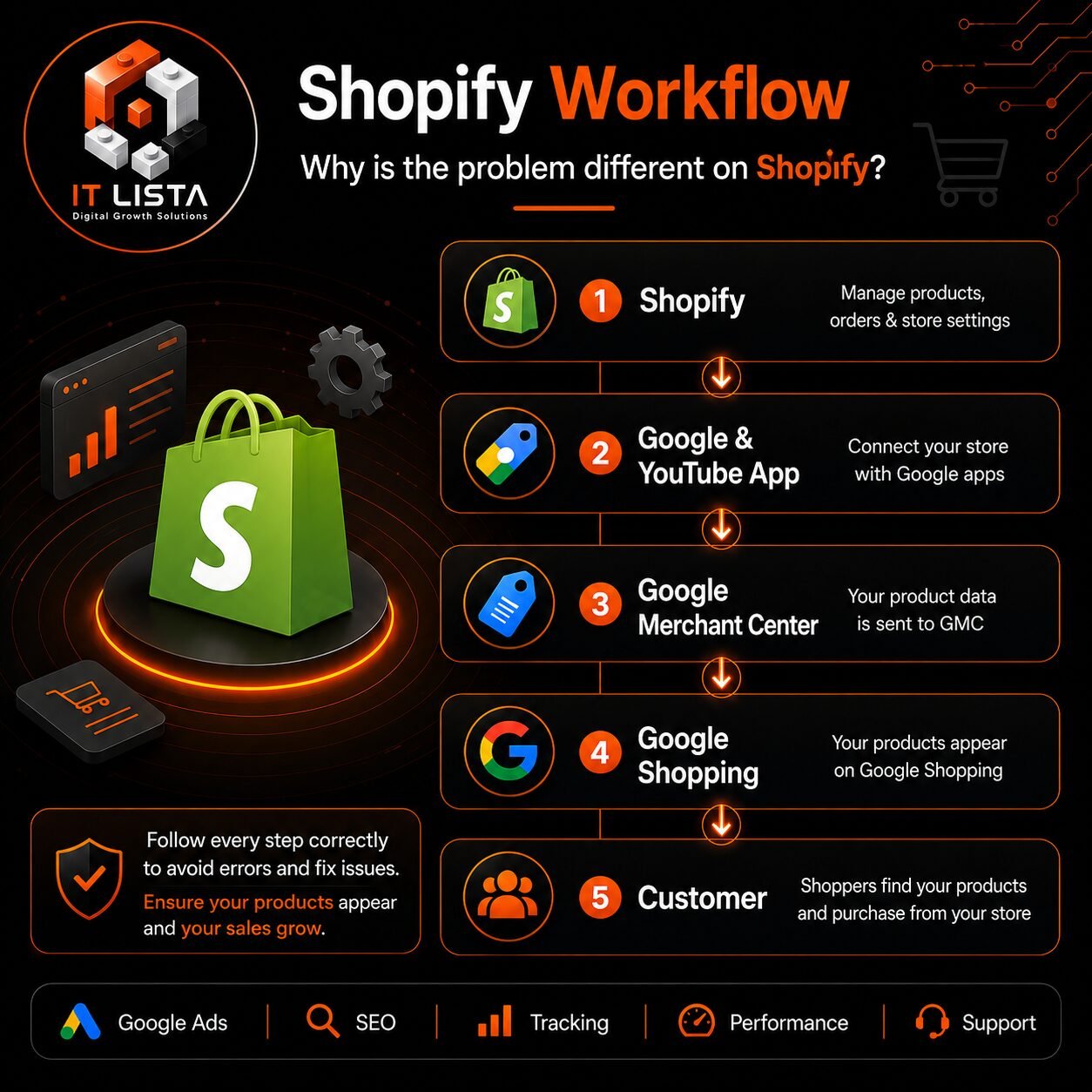
How to Fix Google Merchant Center Misrepresentation and Suspension on Shopify
A Google Merchant Center suspension is one of the most serious problems a Shopify store can face.
When the account is suspended, products may stop appearing in:
- Google Shopping ads.
- Free product listings.
- Performance Max campaigns.
- Google Search product results.
- YouTube Shopping.
- Other Google shopping surfaces.
The most difficult suspension reason is usually:
Misrepresentation

Google may suspend the account without identifying the exact product, page or Shopify setting responsible for the issue.
Your Shopify store may look professional and your products may appear correctly configured, but Google can still detect inconsistencies between:
- Your website.
- Shopify product information.
- The Google & YouTube sales channel.
- Merchant Center product data.
- Shopify Markets.
- Shipping settings.
- Business information.
- Policies.
- Checkout.
This guide explains the most common causes of Google Merchant Center suspension on Shopify and how to prepare your store before submitting another review request.
What Does Misrepresentation Mean in Google Merchant Center?
Misrepresentation is a policy classification Google uses when a business, product, offer or purchasing condition is not presented with sufficient accuracy, transparency or consistency.
A Misrepresentation suspension does not always mean that a merchant is intentionally attempting to deceive customers.
It can also occur when Google cannot verify the business or detects incomplete or conflicting information.
Potential causes include:
- Missing business information.
- An unverifiable business address.
- Different business names across the website and Merchant Center.
- Incomplete shipping or return policies.
- Product prices that do not match.
- Incorrect product availability.
- Unexpected fees during checkout.
- Misleading discounts.
- Fake reviews or trust signals.
- Unclear subscription charges.
- Products that cannot be purchased in the target country.
- Unauthorized claims about branded products.
- Restricted or unsupported products.
Review the complete requirements in Google’s official Misrepresentation policy.
Product Disapproval vs. Shopify Merchant Center Suspension
Before editing the store, determine whether the problem affects individual products or the entire account.
Individual Product Disapproval
The Merchant Center account remains active, but one or more products cannot appear because of issues such as:
- Price mismatch.
- Availability mismatch.
- Missing image.
- Promotional overlay on the image.
- Missing GTIN or MPN.
- Invalid landing page.
- Missing product description.
- Incorrect product category.
- Restricted product.
These problems can normally be reviewed under Product status in Shopify’s Google & YouTube channel and under Needs attention in Merchant Center.
Multiple Product Disapprovals
A group of products may be rejected because they share an incorrect attribute, category, image type, shipping setting or product data source.
Full Account Suspension
A full suspension affects all or most products and can prevent the store from using Google Shopping ads and free listings until it passes another account review.
How Shopify Connects to Google Merchant Center
Shopify stores can connect to Merchant Center using the Google & YouTube sales channel.
The channel can synchronize:
- Store domain.
- Product information.
- Product variations.
- Product prices.
- Inventory.
- Shipping settings.
- Relevant tax settings.
- Product identifiers.
- Product availability.
Google’s integration automatically updates product information, but connecting the channel does not guarantee product or account approval.
The website, business, products, policies and checkout must still comply with Merchant Center requirements.
Shopify’s official documentation explains the current Google & YouTube channel requirements.
Common Causes of Google Merchant Center Suspension on Shopify
1. Multiple Apps or Sources Submitting the Same Products
A common Shopify problem is sending products through more than one source.
Examples include:
- Google & YouTube sales channel.
- A third-party Google Shopping feed application.
- An XML product feed.
- A supplemental or manually uploaded source.
- A custom API connection.
- A source created during an old Merchant Center setup.
- Products automatically discovered by Google.
Multiple sources can submit the same product with different:
- Product IDs.
- Prices.
- Currencies.
- Availability values.
- Landing pages.
- Shipping settings.
- Product titles.
Review all product data sources inside Merchant Center and identify the source currently connected to Shopify.
Do not delete a product source immediately without checking which products and advertising campaigns depend on it.
Removing the wrong source may cause active products to disappear from Performance Max or Shopping campaigns.
2. Connecting the Wrong Merchant Center Account
Shopify may be connected to a different Merchant Center account from the one the merchant intends to use.
This can occur when:
- The Google account manages several Merchant Center accounts.
- A previous agency created another account.
- The email has standard access instead of administrator access.
- A multi-client account is being used.
- The domain is claimed in another Merchant Center account.
- A previous Google & YouTube connection was not removed correctly.
Check:
Shopify Admin → Sales channels → Google & YouTube → Settings
Confirm:
- The connected Google email.
- Merchant Center account ID.
- Google Ads account ID.
- Domain.
- Target country.
- Shipping settings.
The Google email used in Shopify should have the required administrator access to the Merchant Center account.
Shopify’s official Google & YouTube setup guide explains how to resolve account access and connection problems.
3. Domain Verification and Claim Problems
Your primary Shopify domain must be verified and claimed by the correct Merchant Center account.
Domain problems may occur when:
- The domain is claimed by an old Merchant Center account.
- A previous agency still controls the claim.
- Shopify is connected using the
myshopify.comaddress instead of the primary domain. - The
wwwand non-wwwversions are configured incorrectly. - The domain was recently changed.
- Merchant Center still contains the old domain.
- The verification tag was removed during a theme update.
Check the website information inside Merchant Center and compare it with the primary domain configured in Shopify.
Be careful when transferring a domain claim. Transferring the claim removes it from the original Merchant Center account and can cause product sources in the original account to be disapproved.
4. Shopify Product Synchronization Problems
Shopify’s Google & YouTube channel automatically synchronizes eligible products.
Products may fail to synchronize because:
- The product is not available to the Online Store sales channel.
- The product is not available to Google & YouTube.
- The product has no description.
- The product has no image.
- Required identifiers are missing.
- The product type is unsupported.
- The landing page is unavailable.
- The product is a draft.
- The product is archived.
- The product violates Shopping policies.
- Product data has recently changed and requires another review.
To check individual product errors:
Shopify Admin → Products → Open Product → Sales Channels → Google
You can also review products from:
Shopify Admin → Google & YouTube → Product Status
Shopify explains the current synchronization process in its official guide to syncing products with Google Merchant Center.
5. Product Price Mismatch
The submitted product price must match:
- Shopify product page.
- Structured product data.
- Product data sent to Google.
- Shopping cart.
- Checkout.
- Merchant Center.
A Shopify price mismatch may be caused by:
- Shopify Markets.
- Automatic currency conversion.
- Location-based pricing.
- Taxes added during checkout.
- Compare-at prices.
- An expired sale.
- Automatic discounts.
- Discount applications.
- Product bundles.
- Subscription prices.
- Different variant prices.
- Cached pages.
- Theme code displaying the wrong price.
- Mandatory checkout fees.
- An old third-party feed.
After updating a price:
- Confirm the correct market.
- Check the selected currency.
- Test the product page.
- Select the exact product variation.
- Add the product to the cart.
- Proceed to checkout.
- Compare the final price.
- Confirm the update in the Google & YouTube channel.
- Check the price inside Merchant Center.
Do not depend on a discount code to make the submitted price accurate. The price sent to Google should be available to customers under the applicable Merchant Center pricing requirements.
6. Shopify Markets and Currency Mismatch
Shopify Markets allows merchants to display different currencies, prices and domains for different countries.
This can create Merchant Center errors when:
- The submitted currency differs from the landing page currency.
- Googlebot is redirected to another market.
- Product prices are manually adjusted for specific countries.
- The market is inactive.
- The target country is not included in the relevant Shopify Market.
- The country cannot complete checkout.
- The product is unavailable in that market.
- A third-party currency application overrides Shopify Markets.
- The product URL does not preserve the intended market.
Review:
- Shopify’s base currency.
- Target country.
- Shopify Market status.
- Market currency.
- Product pricing for the market.
- Product availability.
- Shipping availability.
- Currency displayed to Googlebot.
- Checkout currency.
Do not assume that because the website displays several currencies, every country is correctly synchronized with Google.
Each target market must provide a consistent product page and checkout experience.
7. Product Variation Errors
Google may treat each Shopify product variation as a separate item.
Each variation should contain:
- Correct price.
- Accurate availability.
- Suitable image.
- Unique SKU.
- Correct barcode or GTIN, when available.
- Correct color.
- Correct size.
- Correct material or pattern when required.
- A working product URL.
- Consistent brand information.
For example, if a shirt is available in black and white but the white variation is out of stock, the white variation should not be submitted as available.
The landing page must allow Google and the customer to identify the exact submitted variation.
8. Incorrect GTIN, Barcode, MPN or Brand
Google uses unique product identifiers to match products with its catalog.
Depending on the product, you may need:
- GTIN.
- UPC.
- EAN.
- ISBN.
- MPN.
- Brand.
In Shopify, a GTIN can normally be added to the barcode field for the relevant product variation.
Do not:
- Invent barcode numbers.
- Use an internal SKU as a GTIN.
- Copy a barcode from another product.
- Use the same GTIN for several different variations.
- Submit a parent product barcode for every variation unless it genuinely applies.
- Mark a branded product as custom-made to avoid identifier requirements.
Shopify’s official product documentation specifically warns merchants not to invent false GTIN information.
If the product genuinely has no GTIN, configure the brand and MPN information according to Google’s product data requirements.
9. Product Availability Mismatch
A product submitted as:
in_stock
must be available for purchase.
Availability mismatch can happen when:
- Shopify inventory is not tracked correctly.
- “Continue selling when out of stock” is enabled.
- Inventory differs between Shopify locations.
- The product is unavailable in the target market.
- A variation is sold out.
- A bundle component is unavailable.
- An external inventory application has not updated Shopify.
- The product can be added to the cart but not shipped.
- The Google product source has not synchronized.
Use the correct availability status:
in_stock
out_of_stock
preorder
backorder
Do not leave discontinued products active in the Google sales channel.
If a product cannot be purchased, remove it from Google & YouTube availability until it becomes eligible again.
10. Product Image Violations
Google Shopping applies specific image requirements.
A product may be disapproved if its main image contains:
- Promotional text.
- Discount percentages.
- Free shipping messages.
- Watermarks.
- Store logos covering the product.
- Borders.
- Call-to-action buttons.
- Placeholder images.
- Multiple unrelated products.
- Low-resolution images.
- Images that do not match the submitted variation.
Use a clean main image showing the actual product.
Lifestyle images can be added as additional images, but the primary image should clearly represent the product and should not contain promotional overlays.
11. Missing or Inconsistent Business Information
Your Shopify store should clearly identify the business responsible for orders.
Provide:
- Business or legal name.
- Valid business address.
- Working phone number.
- Professional email address using the store’s domain.
- Contact Us page.
- About Us page.
- Customer service hours where relevant.
- Business registration information where applicable.
The information should match across:
- Shopify footer.
- Contact page.
- About page.
- Merchant Center.
- Google Ads.
- Payment profiles.
- Customer invoices.
- Order emails.
Using a fake US, UK or UAE address does not solve Merchant Center verification problems.
All business information should be accurate and verifiable.
12. Missing Shopify Policy Pages
Shopify can generate basic policy templates, but the merchant must review and complete them.
Your store should include:
- Shipping and delivery policy.
- Return and exchange policy.
- Refund policy.
- Order cancellation policy.
- Privacy policy.
- Terms of service.
- Subscription and cancellation policy, if applicable.
- Contact Us page.
- About Us page.
Links to these pages should appear in the footer.
According to Shopify’s Google & YouTube requirements, the refund policy and terms of service should be added to the online store and made available through the footer menu.
Do not publish Shopify’s default policy text without replacing:
- Placeholder company names.
- Placeholder email addresses.
- Incomplete brackets.
- Incorrect addresses.
- References to laws that do not apply.
- Incorrect return periods.
- Products or services you do not offer.
13. Unclear Return and Refund Policy
A complete Shopify return policy should explain:
- Return request period.
- Accepted product condition.
- Non-returnable products.
- Return process.
- Return address or instructions.
- Who pays return shipping.
- Restocking fees, if applicable.
- Damaged or incorrect order process.
- Inspection period.
- Refund processing time.
- Refund method.
- Buyer’s remorse returns.
If you do not accept returns, state that clearly.
The policy inside Merchant Center should match the policy displayed on the Shopify store.
Google’s official return policy requirements explain that return information must be clear, publicly accessible and consistent.
14. Shopify Shipping Does Not Match Merchant Center
Google compares the shipping information submitted through Merchant Center with the charges customers see during checkout.
Review:
Shopify Admin → Settings → Shipping and Delivery
Check:
- Shipping profiles.
- Shipping zones.
- Target countries.
- Product-specific rates.
- Free shipping conditions.
- Carrier-calculated rates.
- Flat rates.
- Order processing time.
- Transit time.
- Oversized product charges.
- Remote area fees.
- International duties.
A mismatch can occur when:
- Merchant Center shows free shipping but Shopify charges a fee.
- A product uses a custom shipping profile.
- Carrier-calculated rates are not supported.
- The target country has no Shopify shipping zone.
- A heavy product generates an unexpected rate.
- Free shipping requires a minimum order that is not disclosed.
- Handling time is missing.
- Merchant Center delivery estimates are unrealistic.
Where supported, Shopify may import shipping settings through the Google & YouTube channel. More complex shipping configurations may need to be entered and tested manually.
15. Checkout Cannot Be Completed
Google evaluates the complete purchasing journey.
Test:
Product page → Add to cart → Address → Shipping → Payment → Order confirmation
Look for:
- Checkout errors.
- No active payment method.
- The target country being unavailable.
- Unexpected shipping fees.
- Unexpected taxes.
- A price changing during checkout.
- A product becoming unavailable after entering an address.
- Mandatory WhatsApp contact.
- An unsupported payment gateway.
- Redirects to an unrelated domain.
- Subscription terms appearing only after payment.
- A disabled checkout button.
The checkout must work on mobile and desktop.
If your store targets the United States, test a valid US address. If it targets the UAE or Saudi Arabia, test the complete checkout for those markets as well.
16. Misleading Discounts and Compare-at Prices
Shopify’s compare-at price feature can display discounted prices, but the reference price must be genuine.
Avoid:
- Permanent 80% discounts.
- Compare-at prices never charged to customers.
- Discounts that restart every day.
- Automatic countdown timers.
- False low-stock messages.
- Fake order notifications.
- Unverifiable sale end dates.
- Discount codes that do not work.
- A sale price in Shopify that differs from Merchant Center.
The final purchase price and promotion conditions must be clear and accurate.
17. Subscription Products and Recurring Billing
Shopify stores using subscription applications should clearly disclose:
- Initial payment.
- Recurring payment.
- Billing frequency.
- Automatic renewal.
- Next charge date.
- Minimum commitment.
- Cancellation method.
- Cancellation deadline.
- Refund conditions.
- Trial terms.
- Price after the trial.
- Shipping frequency.
- Whether the offer includes a product, service or both.
Google supports certain physical product subscriptions under specific conditions, but not every subscription product or service is eligible for Shopping.
Check whether the relevant product requires the subscription_cost attribute and whether the product type is supported in the target country.
The ability to sell a subscription through Shopify does not automatically mean it is eligible for Merchant Center.
18. Unauthorized Brand or “Official Store” Claims
If your Shopify store sells branded products, do not claim to be the official website, authorized distributor or exclusive agent unless you can verify that relationship.
Potential issues include:
- Using “Official” in the store name.
- Using a brand’s logo as the primary store logo.
- Copying the official brand website design.
- Using a confusingly similar domain.
- Publishing fake distribution certificates.
- Selling counterfeit products.
- Claiming products are original without reliable sourcing.
- Using manufacturer information incorrectly.
Authorized resellers should keep invoices, supplier information, authorization documents and distribution agreements available.
19. Fake Reviews and Trust Signals
Avoid trust elements that cannot be verified, including:
- Imported reviews from an unrelated website.
- Automatically generated reviews.
- Reviews published before product sales.
- Fake verified-buyer labels.
- Rating numbers that do not match visible reviews.
- Fake media logos.
- False awards.
- Unsupported customer-count claims.
- Fake security badges.
Trust signals should provide real information, not manufacture an artificial appearance of credibility.
20. Theme Problems, Demo Content and Broken Links
A professional Shopify theme can still contain unfinished content.
Review the store for:
- Lorem Ipsum.
- Demo products.
- Default theme contact details.
- Broken images.
- Empty collections.
- Incomplete policy pages.
- Broken social media links.
- Test customer reviews.
- Coming Soon sections.
- Untranslated text.
- Placeholder email addresses.
- Disabled buttons.
- Broken menu links.
- Incorrect business names.
Review both desktop and mobile versions of the live theme.
Do not review only the Shopify theme editor preview. Google evaluates the published storefront.
21. Apps That Change Product Pages
Third-party Shopify applications can change the information Google sees.
Potentially relevant apps include:
- Currency switchers.
- Subscription applications.
- Product bundle applications.
- Product options applications.
- Preorder applications.
- Automatic discount applications.
- Page builders.
- SEO and Schema applications.
- Review applications.
- Country redirect applications.
- Age verification tools.
- Security applications.
An app is not automatically a policy violation.
However, it can contribute to a mismatch if it changes the visible price, availability, product options or checkout conditions without updating the product data sent to Google.
Test the actual product page, product data and checkout after installing or updating important Shopify applications.
22. Restricted and Unsupported Products
Some products may be legal to sell through Shopify but restricted or unsupported in Google Shopping.
Review applicable policies before submitting products in categories such as:
- Healthcare and medicines.
- Medical devices.
- Adult products.
- Weapons.
- Tobacco.
- Financial products.
- Digital services.
- Gift cards.
- Subscription services.
- Counterfeit products.
- Recalled products.
Do not attempt to hide a restricted product by changing its title, category or description.
Remove ineligible products from the Google & YouTube sales channel before requesting an account review.
How to Connect Shopify to Google Merchant Center Correctly
The general setup process is:
- Add the Google & YouTube sales channel.
- Connect the correct Google account.
- Select the correct Merchant Center account.
- Confirm administrator access.
- Verify and claim the primary domain.
- Complete business information.
- Add contact information.
- Add policies to the footer.
- Select the target market.
- Configure shipping.
- Confirm currency.
- Make eligible products available to Google & YouTube.
- Add missing product identifiers.
- Start synchronization.
- Review Product Status.
- Check Merchant Center’s Needs attention section.
Do not start a Performance Max campaign before reviewing product eligibility and account health.
Shopify Checklist Before Requesting a Merchant Center Review
Shopify Store
- Primary domain is correct.
- The live store is not password-protected.
- The published theme works.
- Mobile navigation works.
- Product pages work.
- Cart works.
- Checkout works.
- SSL is active.
- No demo content remains.
- No broken links remain.
- Important applications have been tested.
- No misleading redirects are active.
Business Information
- Business name is consistent.
- Address is accurate.
- Phone number works.
- Email uses the store’s domain.
- Contact Us page is complete.
- About Us page is complete.
- Customer service details are visible.
- Information matches Merchant Center.
- Information matches payment profiles.
Policies
- Shipping policy is complete.
- Return policy is complete.
- Refund process is clear.
- Cancellation policy is available.
- Privacy policy is available.
- Terms of service are available.
- Subscription terms are clear.
- Policy links appear in the footer.
- No placeholder text remains.
- Merchant Center policies match Shopify.
Products
- Titles are accurate.
- Descriptions are complete.
- Images meet Google requirements.
- Prices match.
- Currencies match.
- Availability matches.
- Variations are configured correctly.
- GTIN values are valid.
- MPN values are accurate.
- Brand information is correct.
- Restricted products are removed.
- Products are available in the target market.
- Products are available to Online Store.
- Products are available to Google & YouTube.
Shopify Markets
- Target country is active.
- Correct currency is displayed.
- Product prices are correct.
- Products are available in the market.
- The market has a valid shipping zone.
- Checkout accepts addresses from the market.
- Country redirects work correctly.
- The final checkout price matches the landing page.
Shipping and Checkout
- Shipping rates match Merchant Center.
- Processing time is accurate.
- Delivery estimates are realistic.
- Free shipping conditions are clear.
- Taxes are displayed correctly.
- At least one payment method works.
- No unexpected fees appear.
- The complete order process has been tested.
Google & YouTube Channel
- Correct Google account is connected.
- Correct Merchant Center ID is connected.
- Domain is verified and claimed.
- Product synchronization works.
- Product Status has been reviewed.
- Duplicate sources have been identified.
- Missing attributes have been added.
- Corrected products have synchronized.
Merchant Center
- Business information is complete.
- Customer service information is complete.
- Target country is correct.
- Currency is correct.
- Shipping settings match Shopify.
- Return policy matches Shopify.
- Duplicate product data sources are removed.
- Old products are removed.
- Every Needs attention issue has been reviewed.
- Product updates are visible.
- Restricted products have been removed.
Should You Request a Review After Making One Change?
Do not request another review immediately after changing one page or setting.
Before submitting the review:
- Audit the entire Shopify store.
- Review business information.
- Complete all policies.
- Test every target market.
- Correct prices and availability.
- Remove restricted products.
- Fix product identifiers.
- Review shipping settings.
- Test the complete checkout.
- Confirm that products have synchronized.
- Check Merchant Center for old data.
- Submit the review only after completing all corrections.
Google provides the official steps in its guide to requesting a Merchant Center review.
Should You Delete the Suspended Account and Create a New One?
Creating a new Merchant Center account does not fix the original website or product data problem.
If the same Shopify store, business information, products and policies remain unchanged, the new account may also be suspended.
Attempting to create new accounts to bypass a suspension can make the situation more complex and may affect other connected Google accounts.
The correct approach is to:
- Identify the actual problems.
- Correct the Shopify store.
- Update product data.
- Remove non-compliant products.
- Verify Merchant Center settings.
- Request a review through the official process.
Google Merchant Center Recovery Service for Shopify
IT LISTA provides Google Merchant Center auditing and suspension recovery services for Shopify stores.
Our service may include:
- Merchant Center suspension analysis.
- Misrepresentation policy review.
- Complete Shopify store audit.
- Google & YouTube channel review.
- Merchant Center connection review.
- Duplicate product source detection.
- Shopify Markets review.
- Price and currency comparison.
- Inventory and variation review.
- GTIN, MPN and brand audit.
- Product image review.
- Shipping and return policy review.
- Checkout testing.
- Subscription product assessment.
- Restricted product assessment.
- Preparation for another Merchant Center review.
- Review result analysis and next-step recommendations.
Frequently Asked Questions
What Is the Best Way to Connect Shopify to Merchant Center?
The Google & YouTube sales channel provides a direct integration between Shopify and Google Merchant Center.
Third-party product feed applications may be appropriate when a store needs advanced multi-country, multilingual or feed customization features.
The best option depends on the store’s target markets and technical requirements.
Why Are My Shopify Products Not Syncing to Google?
Common causes include:
- Products not available to Google & YouTube.
- Products not available to the Online Store.
- Missing descriptions.
- Missing images.
- Missing identifiers.
- Unsupported products.
- Domain problems.
- Merchant Center account issues.
- Product data still under review.
Why Does Google Show a Different Shopify Price?
The difference may be caused by:
- Shopify Markets.
- Currency conversion.
- Taxes.
- Product variations.
- Automatic discounts.
- Compare-at pricing.
- Subscription pricing.
- An outdated source.
- A cached landing page.
- Checkout fees.
Compare the landing page, selected variation, product source and checkout total for the exact target country.
Why Does Google Show More Products Than Shopify?
Each Shopify variation may be submitted separately.
The product count may also increase because of multiple countries, old data sources, duplicate integrations or outdated products.
Can a Shopify App Cause Merchant Center Suspension?
An app is not automatically a violation.
However, an application may contribute to price, availability or checkout inconsistencies if it changes the customer-facing page without updating Merchant Center data.
Does Changing the Shopify Theme Fix Misrepresentation?
Not necessarily.
A new theme may solve a technical problem, but it will not fix missing business information, unclear policies, restricted products or incorrect Merchant Center settings.
Can Merchant Center Reinstatement Be Guaranteed?
No company outside Google can guarantee reinstatement because Google makes the final decision.
A professional audit can identify policy, product data and technical issues and prepare the store correctly before another review request.
Conclusion
Fixing a Google Merchant Center suspension on Shopify requires more than reconnecting the Google & YouTube app or changing one policy page.
A complete review should cover:
- Business identity.
- Contact information.
- Website policies.
- Google & YouTube connection.
- Product data sources.
- Shopify Markets.
- Product prices.
- Currencies.
- Product availability.
- Variations.
- Product identifiers.
- Shipping settings.
- Checkout.
- Subscription terms.
- Restricted products.
- Third-party applications.
The more accurate, transparent and consistent your Shopify store is, the stronger its chances of passing Google’s review and restoring products to Shopping ads and free listings.
For a broader explanation covering Shopify, WooCommerce, Salla, Tager and custom-developed stores, read our:
[Complete Guide to Fixing Google Merchant Center Misrepresentation and Account Suspension]
If your Shopify Merchant Center account has been suspended or your products have been disapproved, contact IT LISTA for a complete Shopify and Merchant Center audit before submitting another review request.